Game Controller
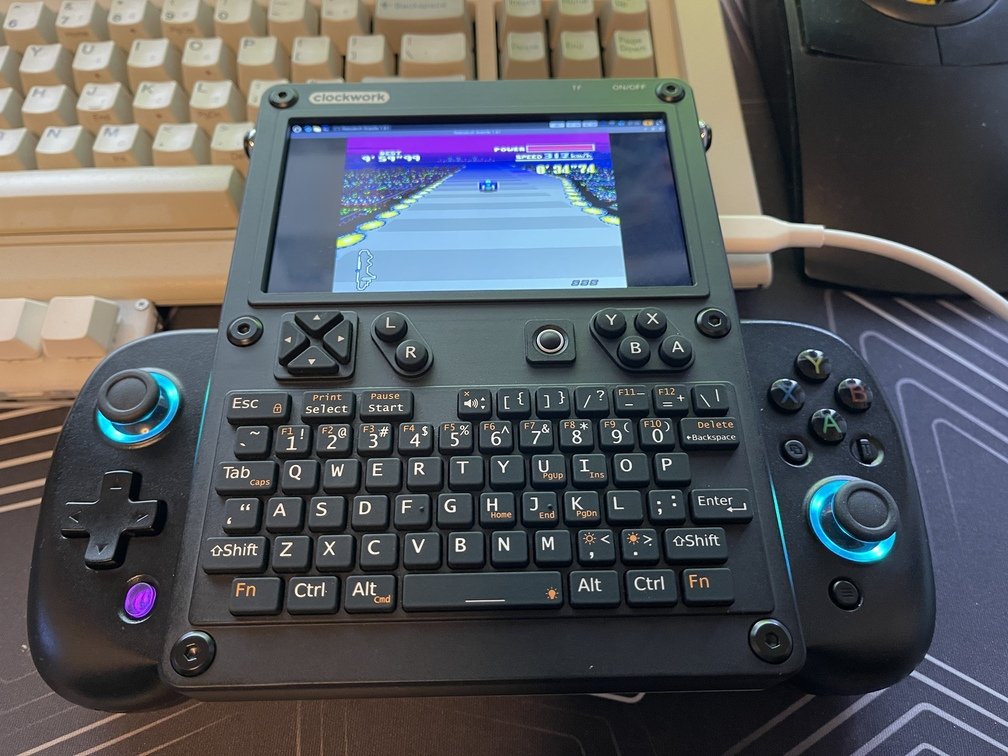
Although uConsole comes with its own game controller, we’ll try adding a more powerful and user-friendly controller. Here, we’ll share the know-how for doing so.
Choosing a Game Controller
| uConsole | iPadAir | LCD |
|---|---|---|
 |
 |
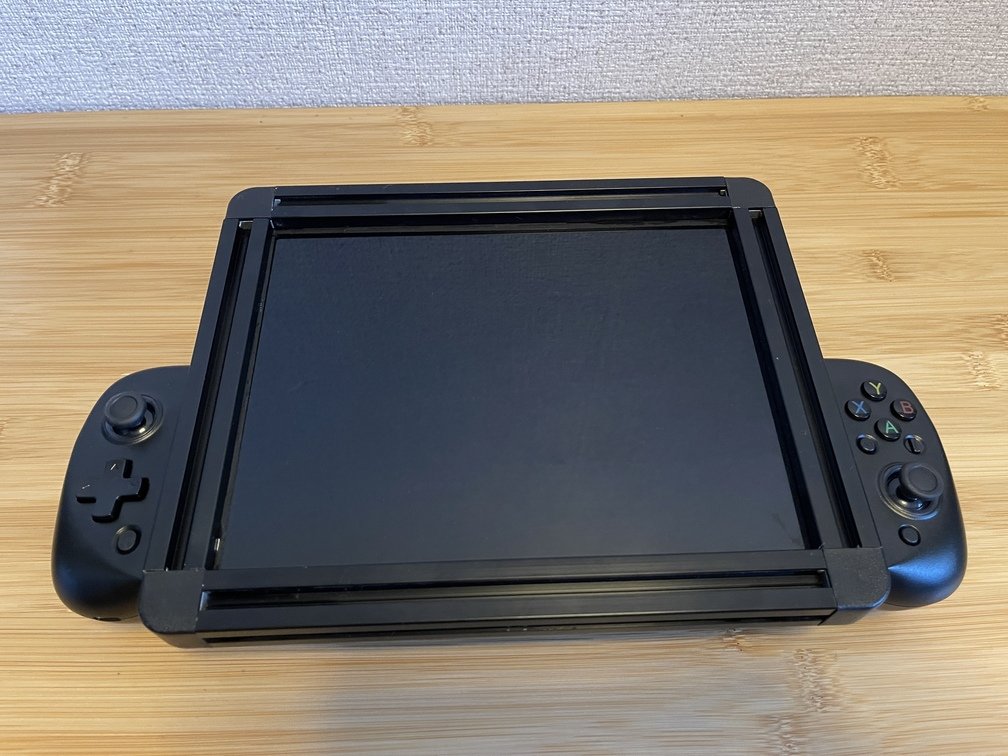 |
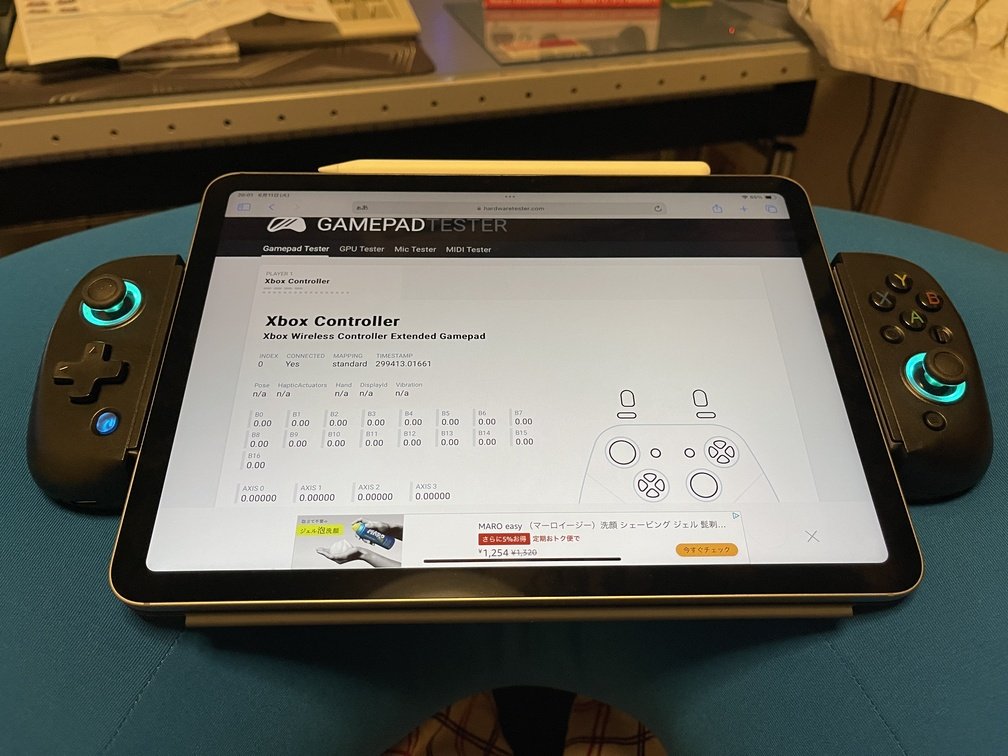
| Running the Emulator | The iPad Air is just barely enough | Fit it into the groove on the LCD bezel |
I use a game controller that attaches to a smartphone or tablet, but since the uConsole is about 135 mm wide, I choose a game controller that extends at least that far. You can decide based on your other equipment as well. Since the “old-timer” also works with tablets, I look for and use a model with a wide opening.
Installing a Game Controller
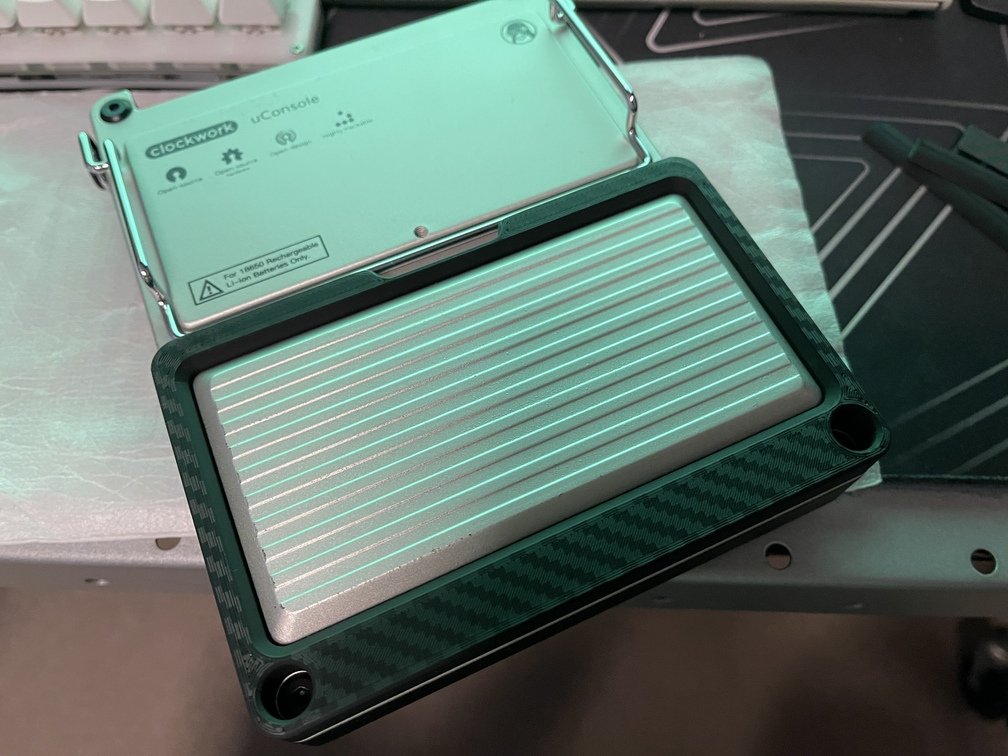
| Adapter Only | Installation on the Console | How it attaches to the controller |
|---|---|---|
 |
 |
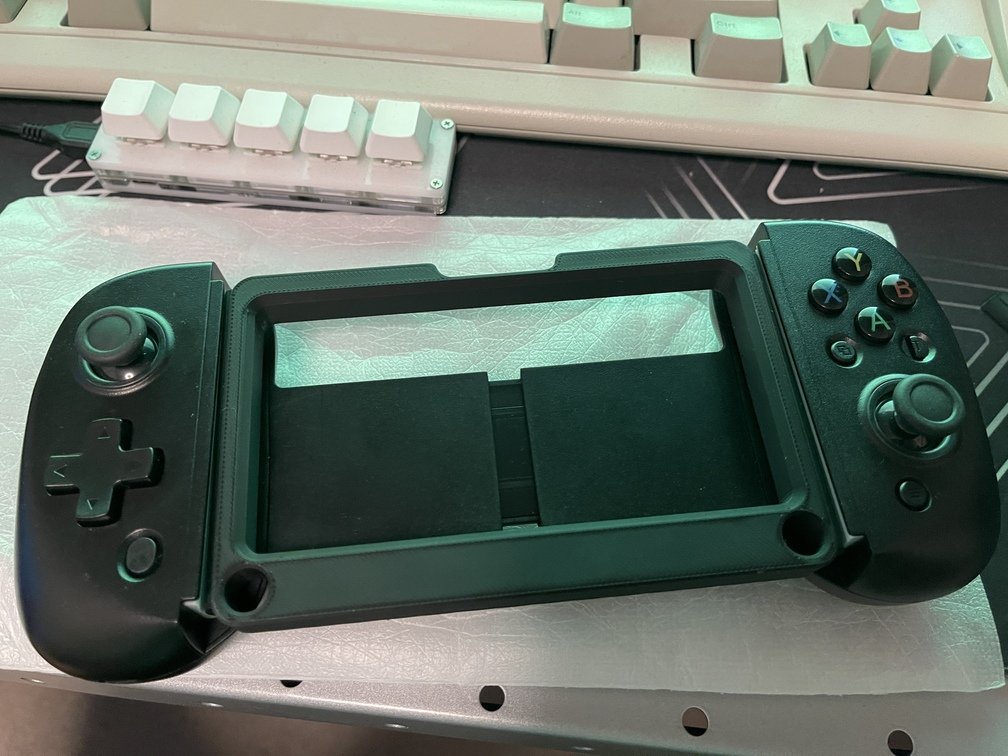 |
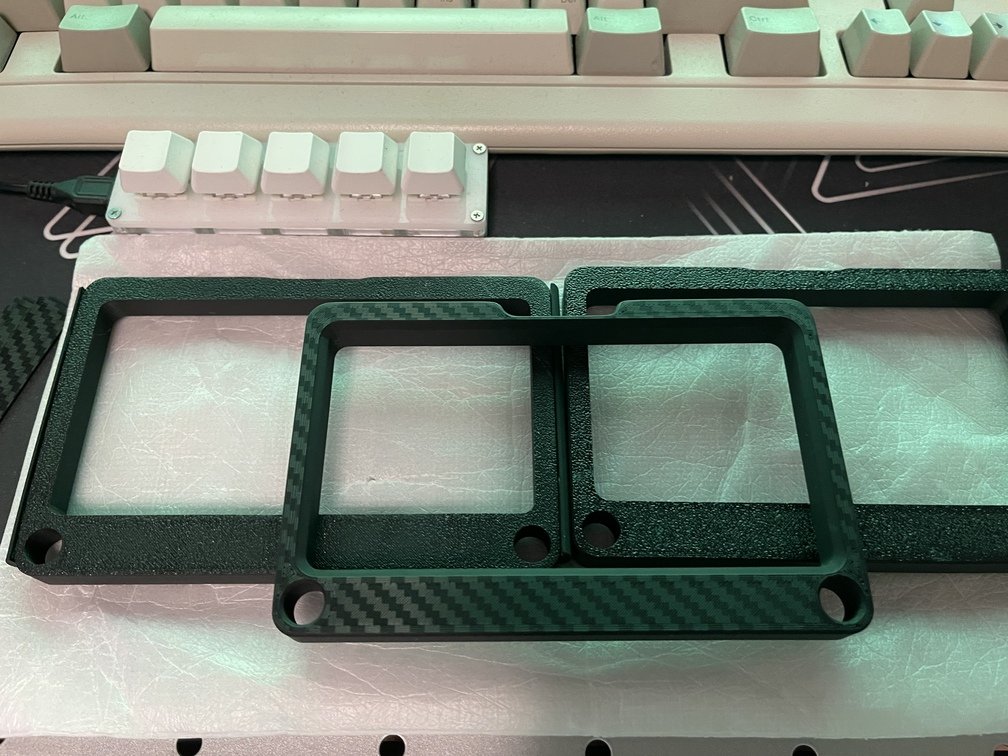
It might seem like it would work just fine if I attached it as is, but if you flip over the uConsole, the bottom has the same shape as the 回, creating a step. Because of this step, the game controller cannot be securely clamped in place. So, I’ll 3D print an adapter to fill the gap. I’ll then attach the game controller using this adapter.
Examples of Use
Now that we’ve implemented a user-friendly game controller, we’ve been able to achieve the following.
-
Emulator
Install an emulator and play retro video games (just like that). -
Robot Control
RVCS(RoboCar & Vision Control System) -TriClopsUsed as the control console for the RoboCar project. It allows for operation using an ergonomic controller and a full-size keyboard in the center.