RVCS
| uConsole | System Overview | TriClops |
|---|---|---|
 |
.JPG) |
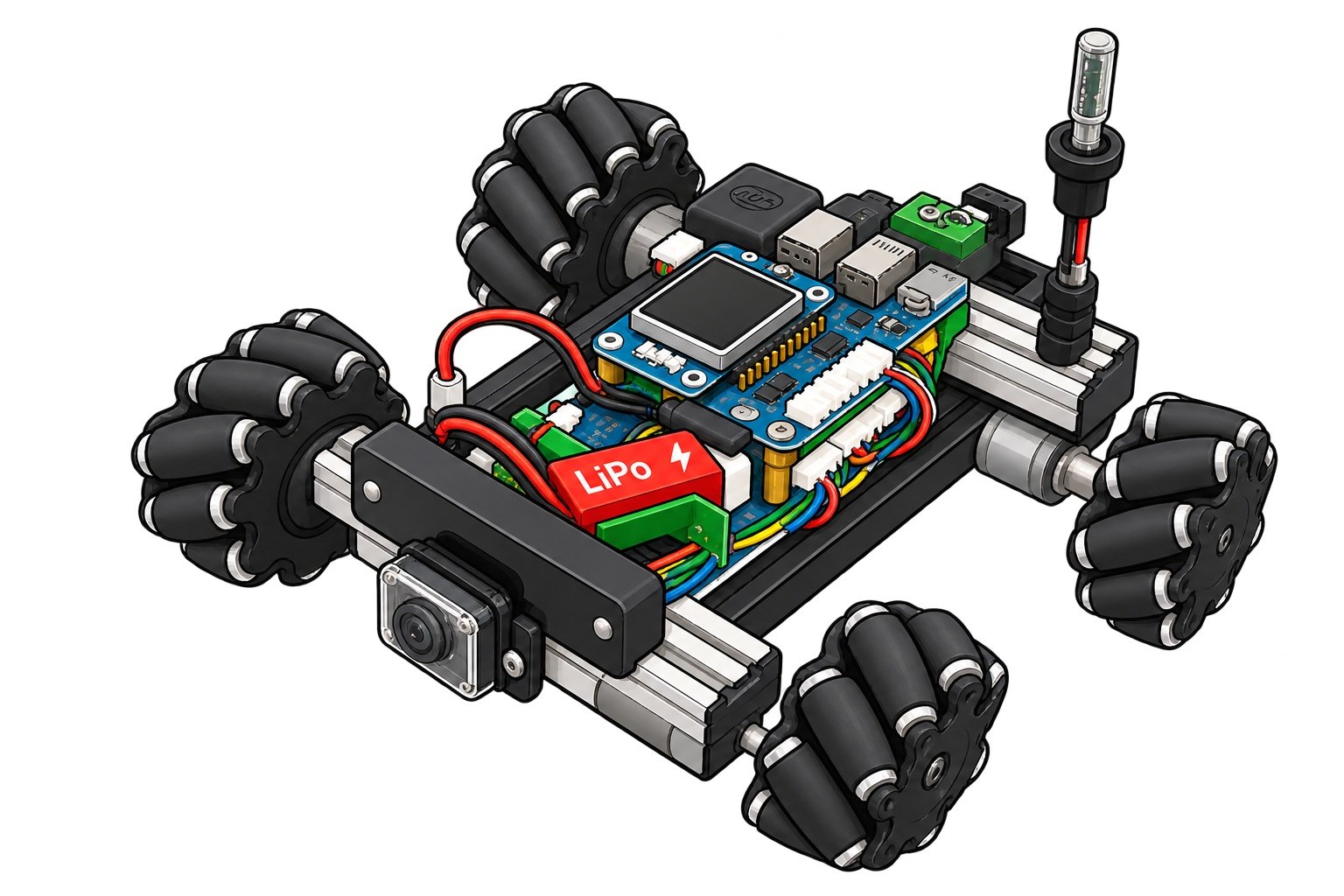 |
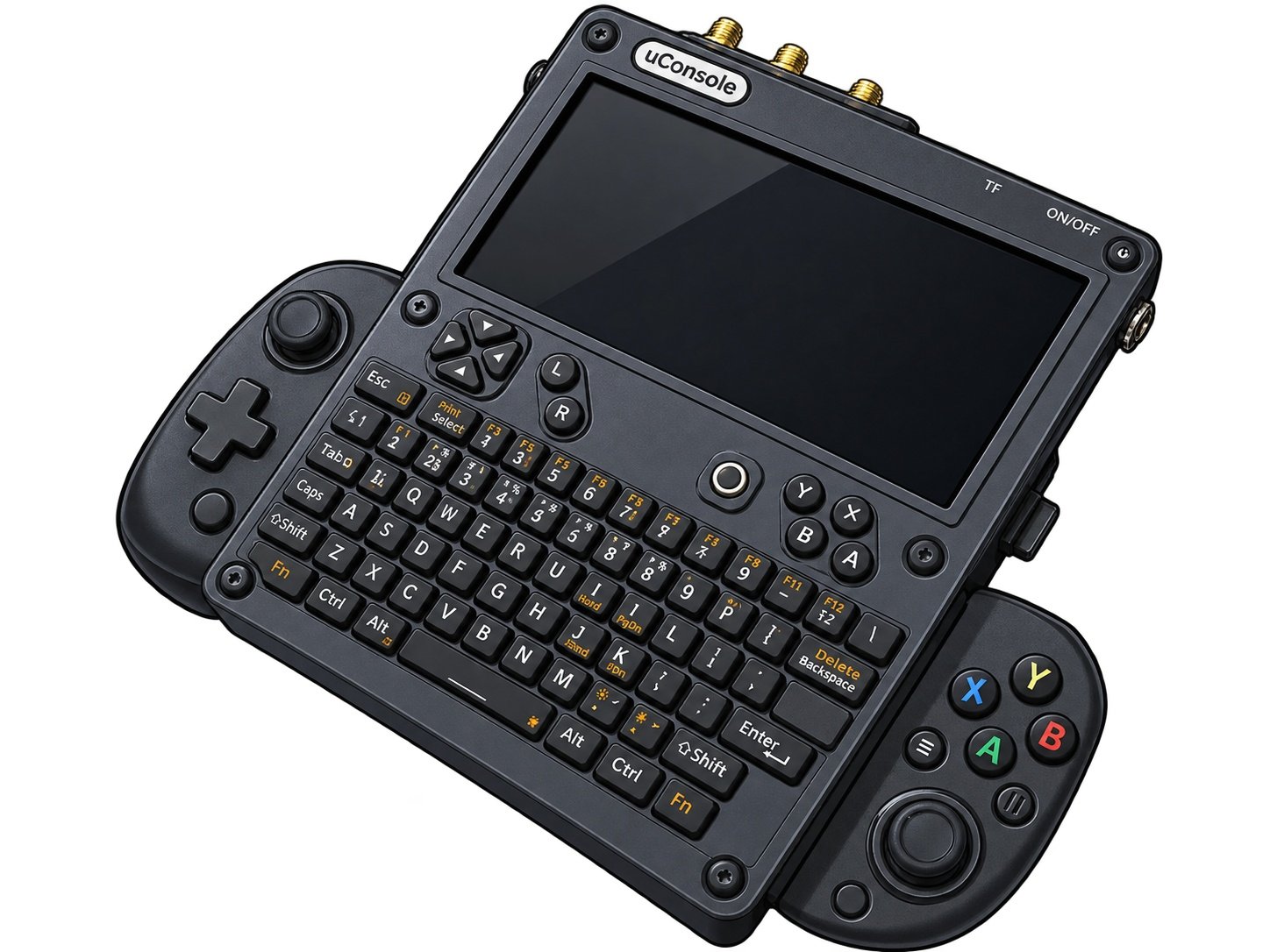
| Comes with a game controller | uConsole+TriClops | Cartoon-style |
Overview
RVCS is a web app whose name stands for Rover/RoboCar Vision and Control System; it is TriClops’ operating system designed specifically for uConsole.
Motivation for Development
This might just be an old-timer’s bias, but when I plug a game controller into the uConsole, it fits surprisingly well—it feels comfortable in my hand, seems easy to control, and, above all, its shape matches TriClops perfectly.
However, when ROCK is running, the camera view becomes smaller, and since the device itself is physically small, everything appears smaller overall, making it less user-friendly. In particular, for model uConsole, the resolution is 1280x720 pixels, which does not meet ROCK’s required specifications (FHD: 1920x1080 or higher). For this reason, it is necessary to develop a dedicated app.
Dedicated Web App
In developing the dedicated app, we implemented a user interface to control the sensors and actuators built into TriClops.
- Aircraft Control
- Camera Image
- Infrared Remote Control
- IMU
- GNSS
- Environment
- CPU Status
The camera perspective in this game is exactlyFPS(Fist Person Shooting), which is a classic feature of PC games. There are many games on the market that serve as models, and we’ve drawn inspiration from them.
How to Run It
-
Preparation
- Connecting the
uConsoleto an External Game Controller
- Connecting the
-
Starting the Server
Start the camera server and the device server
⇒Launch a terminal in uConsole and run the following command
- Run
RVCSin Chrome
- Open the URL http**://<TriClopのIPアドレス>:3007** in Chrome
- Press
F11to go full screen
Pilotage
Click the IGN in the lower-left corner of the screen so that the tilt of the game controller is reflected in the motor output value PWM. Check to see if TriClop operates in response to the movement of the left analog stick.